
Import a Google Maps list
Paste a public Google Maps list link so Pinned can turn saved places into editable guide rows.
OutcomeYour draft contains the imported places, ready for cleanup and creator notes.
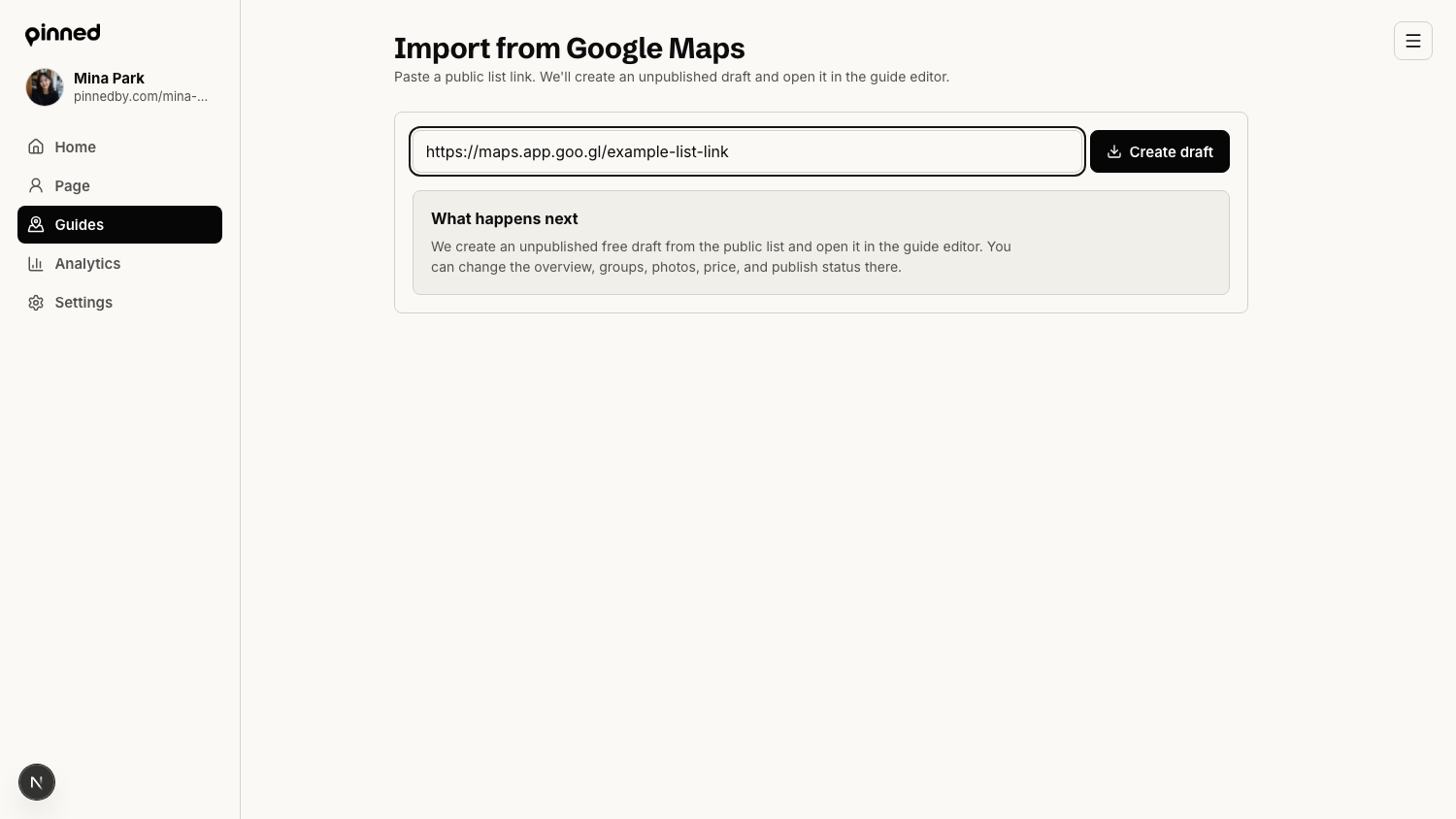
Prepare the Google Maps list
The importer needs a public or shareable Google Maps list link.
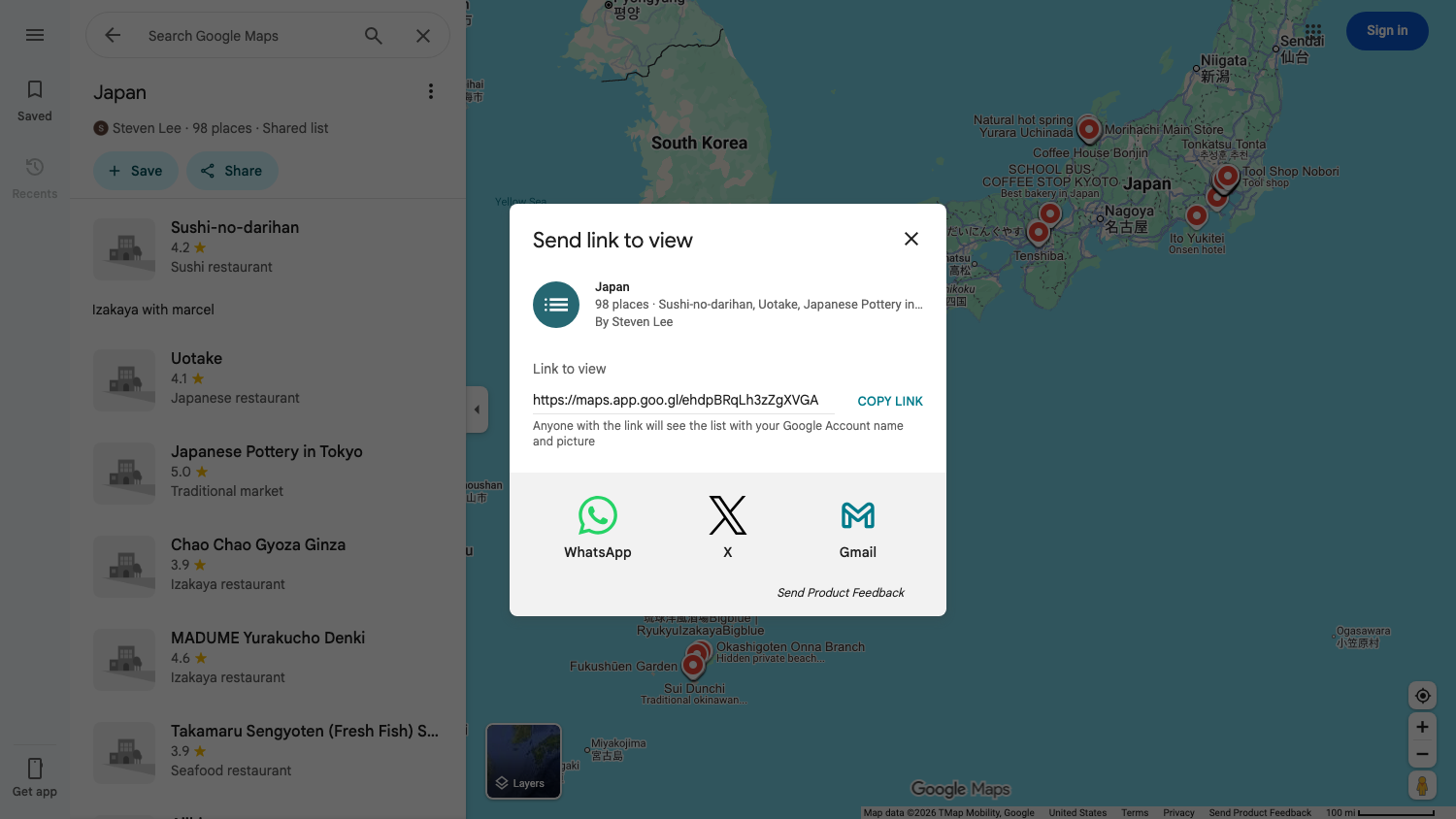
- Open Google Maps and find the list you want to turn into a guide.
- Click Share on the list, then Copy link in the Send link to view dialog.
- Make sure the list contains the places you actually want buyers to see.
- Remove duplicates or obvious rejects before importing if it is faster to do that in Google Maps.
Create a draft from the list
The global importer creates a new unpublished draft from the link.
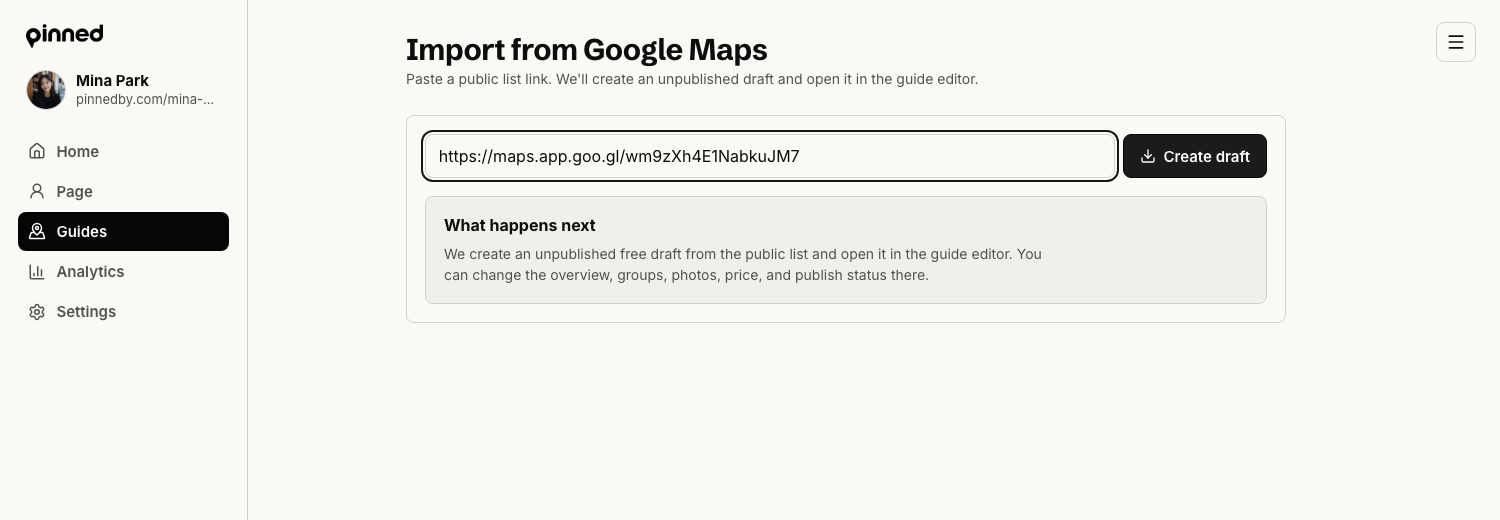
- Open Import from Google Maps in the creator console.
- Paste the public list link into the input.
- Click Create draft.
- Pinned opens the new draft in the guide editor when the import succeeds.
Import into an existing guide
If you already created the guide shell, use the import panel inside the editor instead.
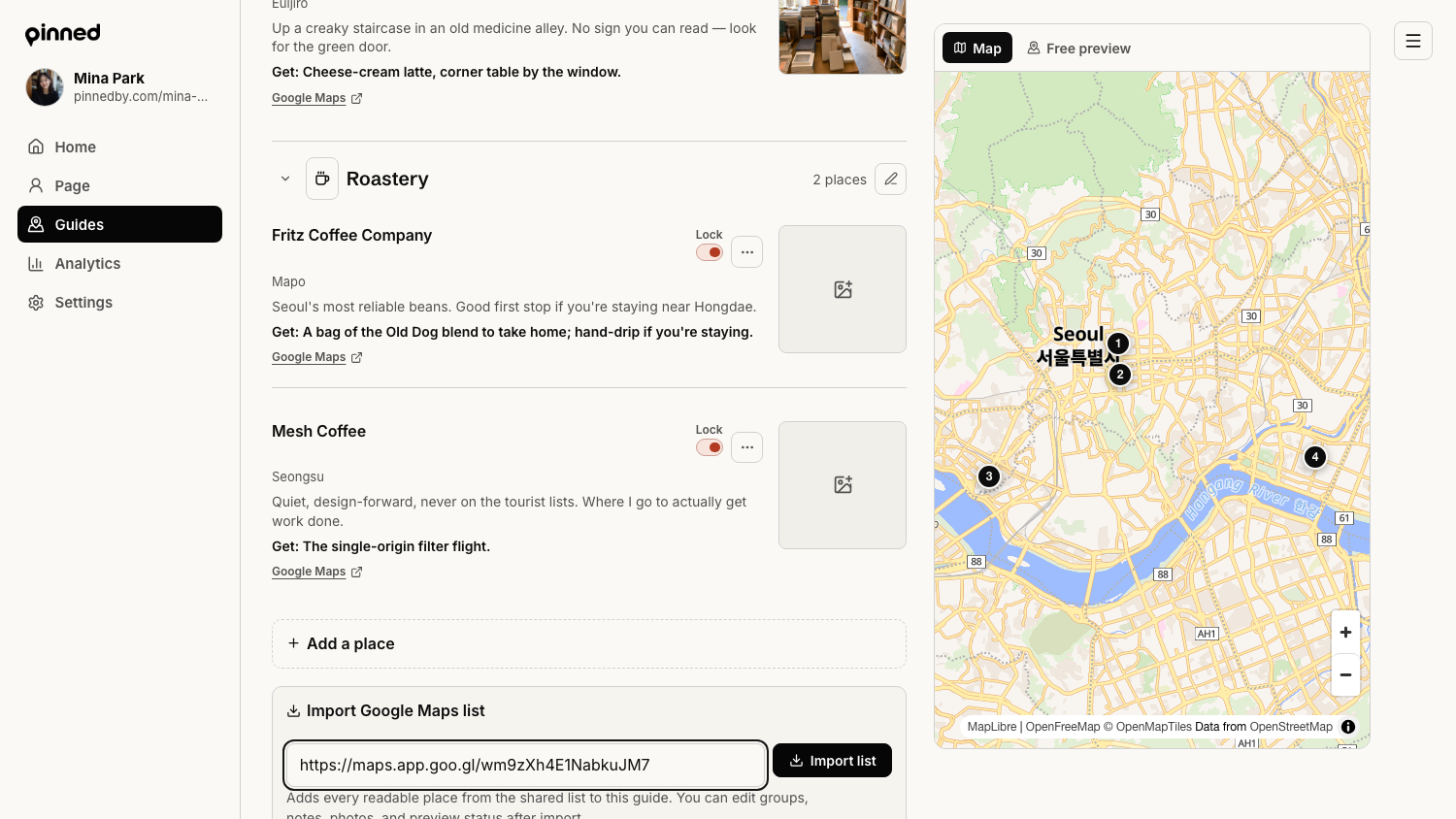
- Open the guide editor.
- Find Import Google Maps list below the place manager.
- Paste the same list link.
- Review the imported places before publishing.
The import creates structure. Your notes, order, preview choices, and photos create the value.
Done when
Imported places have valid Google Maps URLs. Place names and groups are readable. The guide remains unpublished until cleanup is done.